Just use the command below to fix the user’s files and folder permission.
find /home/username/public_html/ -type d -exec chmod 755 {} \;
find /home/username/public_html/ -type f -exec chmod 644 {} \;
Repace
Just use the command below to fix the user’s files and folder permission.
find /home/username/public_html/ -type d -exec chmod 755 {} \;
find /home/username/public_html/ -type f -exec chmod 644 {} \;
Repace
This tutorial shows you how to update timezone on your CentOS/Redhat machine. Run the command below to install system-config-date.
[root]# yum install system-config-date
[root]# setup
Go-to -> Timezone configuration -> Select your local time zone -> Click OK -> Quit.
To check your current timezone:
[root]# date
Sun Mar 15 23:50:42 MYT 2009
Guys, if you having packet loss problem now with streamyx, you can use these proxies.
Usable proxy list:
219.93.178.162:3128
updated: 26/04/2010
Firefox setting:
Tools ->Options->Advance->Network->Settings
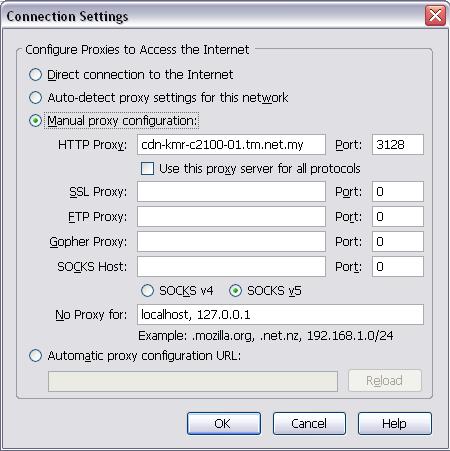
Internet Explorer Setting:
Tools -> Internet Options -> Connections -> Lan Settings

Notes: If you happen to get error message while surfing the net using this proxy, which means this proxy is no longer usable.
The most full-featured Internet power tool on the market, Opera includes pop-up blocking, tabbed browsing, integrated searches, and advanced functions like Opera’s groundbreaking E-mail program, RSS Newsfeeds and IRC chat. And because we know that our users have different needs, you can customize the look and content of your Opera browser with a few clicks of the mouse.
Download: Opera v9.60
Below is the tutorial on how-to install DOM-XML in DirectAdmin using customapache.
# yum install libxml2-devel libxslt-devel libgcrypt-devel
# cd /usr/local/directadmin/customapache
# vi configure.phpAdd this to configure.php before –with-gd \ :
–with-dom=/usr/lib \
–with-dom-exslt=/usr/lib \
–with-dom-xslt=/usr/lib \# ./build clean
# ./build php n
# service httpd restart
Make sure you install these before installing DirectAdmin
yum install gcc-c++ libxml2-devel libjpeg-devel libpng-devel -y
As you notice on 64-bit, you have /lib and /lib64. It’s just the dynamic linking in the installer is a bit skewed, now run the command below:
ln -sf /usr/lib64/libgssapi_krb5.so.2.2 /usr/lib/libgssapi_krb5.so
ln -sf /usr/lib64/libkrb5.so.3.3 /usr/lib/libkrb5.so
ln -sf /usr/lib64/libk5crypto.so.3.1 /usr/lib/libk5crypto.so
ln -sf /lib64/libcom_err.so.2 /usr/lib/libcom_err.so
ln -sf /usr/lib64/libexpat.so /usr/lib/libexpat.so
ln -sf /usr/lib64/libm.so /usr/lib/libm.so
ln -sf /usr/lib64/libssl.so /usr/lib/libssl.so
If you are getting this error message in your OpenVZ vm, you can fix this by running command below in your VPS node:
vzctl exec <VPSID> /sbin/MAKEDEV ptyp
This guide shows you how to add a new hard disk in linux OS. This allow user to easily add and boot
up the hard disk without any pain.
This howto is a practical guide without any warranty – it doesn’t cover the theoretical backgrounds.
There are many ways to set up a new harddisk.
First you need to list out the hard disk that are installed in Linux. Assume I added a new SATA drive as secondary drive.
[root]# fdisk -l
Disk /dev/sda: 320.0 GB, 320072933376 bytes
255 heads, 63 sectors/track, 38913 cylinders
Units = cylinders of 16065 * 512 = 8225280 bytes
Device Boot Start End Blocks Id System
/dev/sda1 * 1 13 104391 83 Linux
/dev/sda2 14 38913 312464250 8e Linux LVM
Disk /dev/sdb: 160.0 GB, 160041885696 bytes
255 heads, 63 sectors/track, 19457 cylinders
Units = cylinders of 16065 * 512 = 8225280 bytes
[root]# fdisk /dev/sdb
Command (m for help): m (Enter the letter “m” to get list of commands)
Command action
a toggle a bootable flag
b edit bsd disklabel
c toggle the dos compatibility flag
d delete a partition
l list known partition types
m print this menu
n add a new partition
o create a new empty DOS partition table
p print the partition table
q quit without saving changes
s create a new empty Sun disklabel
t change a partition’s system id
u change display/entry units
v verify the partition table
w write table to disk and exit
x extra functionality (experts only)
Command (m for help): n
Command action
e extended
p primary partition (1-4)
p
Partition number (1-4): 1
First cylinder (1-2654, default 1):
Using default value 1
Last cylinder or +size or +sizeM or +sizeK (1-2654, default 2654):
Using default value 2654
Command (m for help): p
Disk /dev/sdb: 160.0 GB, 160041885696 bytes
255 heads, 63 sectors/track, 19457 cylinders
Units = cylinders of 16065 * 512 = 8225280 bytes
Device Boot Start End Blocks Id System
/dev/sdb1 * 1 19457 156288321 83 Linux
Command (m for help): w (Write and save partition table)
[root]# mkfs -t ext3 /dev/sdb1
mke2fs 1.27 (8-May-2008)
Filesystem label=
OS type: Linux
Block size=4096 (log=2)
Fragment size=4096 (log=2)
2508352 inodes, 5016052 blocks
250802 blocks (5.00%) reserved for the super user
First data block=0
154 block groups
32768 blocks per group, 32768 fragments per group
16288 inodes per group
Superblock backups stored on blocks:
32768, 98304, 163840, 229376, 294912, 819200, 884736, 1605632, 2654208,
4096000
Writing inode tables: done
Creating journal (8192 blocks): done
Writing superblocks and filesystem accounting information: done
This filesystem will be automatically checked every 34 mounts or
180 days, whichever comes first. Use tune2fs -c or -i to override.
[root]# mkdir /opt2
[root]# mount -t ext3 /dev/sdb1 /opt2
File: /etc/fstab
Enter the drive into the fstab file so that it is recognized and mounted upon system boot.
File: /etc/fstab Red Hat 9.0
LABEL=/ / ext3 defaults 1 1 LABEL=/boot /boot ext3 defaults 1 2 none /dev/pts devpts gid=5,mode=620 0 0 none /proc proc defaults 0 0 none /dev/shm tmpfs defaults 0 0 /dev/hda2 swap swap defaults 0 0 /dev/sdb1 /opt2 ext3 defaults 1 2 /dev/cdrom /mnt/cdrom iso9660 noauto,owner,kudzu,ro 0 0 /dev/fd0 /mnt/floppy auto noauto,owner,kudzu 0 0 |
The digits “1 2” refer to whether the mount point should be backed up when the dump command is used and disk integrity checks using fsck. The “1” states that it should be backed up when the dump command is issued (0=no). The “2” refers to the order in which “fsck” should check the mount points. The digit “1” identifies the root (“/”) of the filesystem. All others should be “2”. (0=no check)
Below is the tutorial on how to secure your dns server (bind).
nano -w /etc/named.conf
Then add this section of code to the top of named.conf. Replace 123.123.123.123 with your own IP.
acl “trusted” {
123.123.123.123;
127.0.0.1;
};
Then add these line to “options{}” after this line “directory “/var/named”;”.
version “not currently available”;
allow-recursion { trusted; };
allow-notify { trusted; };
allow-transfer { trusted; };
That’s it. Save and exit and restart your bind service.
This is a simply command in Linux to check the no. of connection opened per IP.
/bin/netstat -ntu | awk ‘{print $5}’ | cut -d: -f1 | sort | uniq -c | sort -nr |more